How to delete pages from a PDF without uploading it anywhere
Delete pages from a PDF in your browser — free, no upload, no account, no watermark. How PDF page deletion works, and what to watch out for.
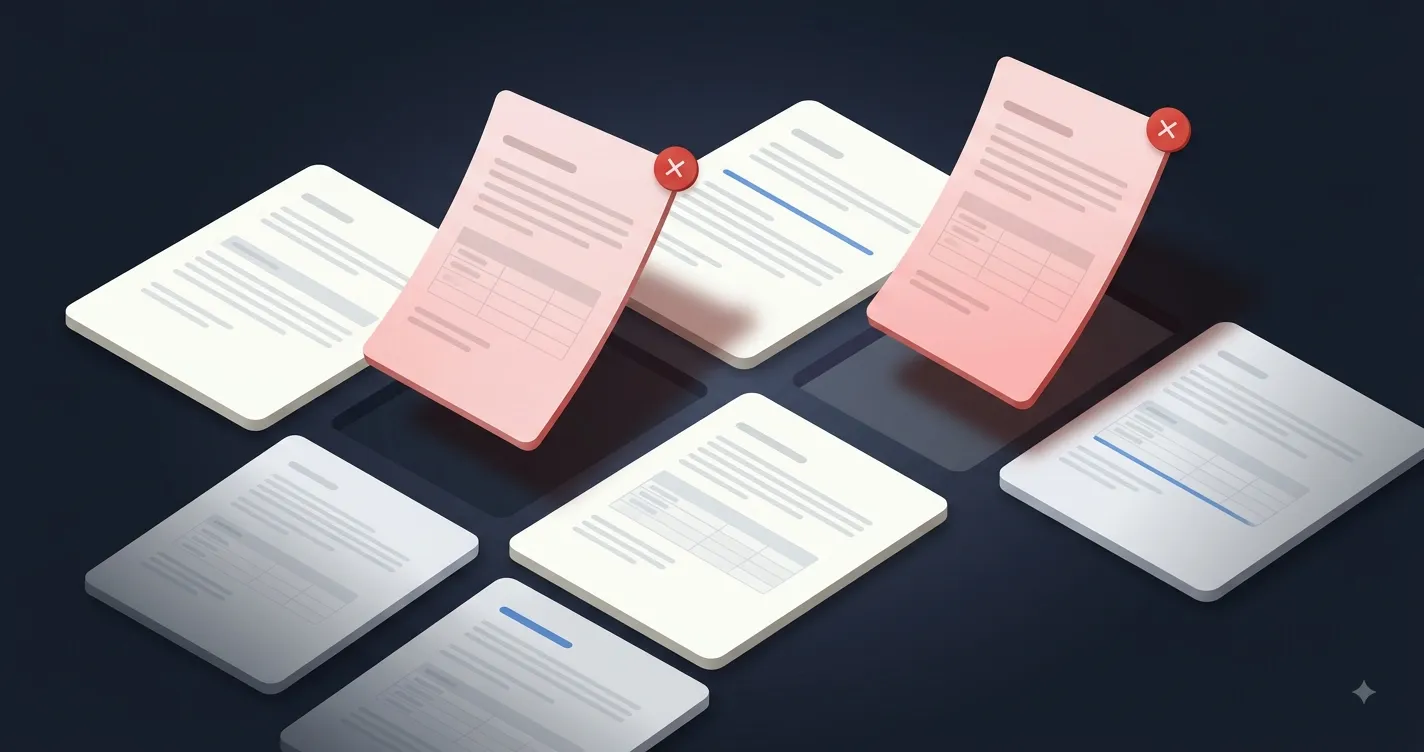
Most PDFs arrive with pages you did not ask for. A scanned contract picks up a blank separator sheet. A bank statement carries four pages of terms you will never read. An exported report ends with an empty final page because the last table broke across the margin.
To delete pages from a PDF is a two-minute job. The awkward part is that most of the obvious ways to do it involve handing the entire document to a stranger's server first.
The short version
Delete PDF PagesRemove pages from a PDF by clicking them — free, private, no upload.Open the tool, drop the file in, click the pages you want gone, download the result. The PDF never leaves your device — the work happens in the browser tab, which is why there is no upload progress bar and no queue.
How to delete pages from a PDF in your browser
Four steps, start to finish:
- Open the PDF. Drag it onto the drop zone, or click to browse for it. Every page appears as a thumbnail.
- Click the pages to delete. Each one you click dims and is marked for removal. Shift-click to take a whole run at once.
- Check the preview. The dimmed pages are the ones about to disappear, so what is left un-dimmed is the PDF you are about to get.
- Delete and download. One click removes the pages and hands you the new file.
There is no sign-up, no watermark on the output, and no page limit beyond what your device can hold in memory.
Why the pages you click are the ones that disappear
The tool shows you every page as a thumbnail. Clicking one marks it for deletion and dims it, so what you are looking at is a preview of the document you are about to get, not a list of things you have ticked.
That distinction matters more than it sounds. The common alternative is a text box where you type page numbers, and a typo in a text box is invisible — you find out you removed page 12 instead of page 21 after you have sent the file. Selection is also carried by the border and a badge as well as the dimming, so it still reads correctly if you cannot easily distinguish the colours.
Shift-click extends a selection rather than toggling it, so dragging across a range that is already partly selected fills the gaps instead of punching holes in it.
Deleting versus extracting PDF pages
These are the same operation seen from opposite ends, and which one you want depends on how many pages you are keeping.
| You want to | Use | Because |
|---|---|---|
| Drop 2 pages from a 40-page file | Delete Pages | You would otherwise click 38 pages |
| Pull 3 pages out of a 40-page file | Extract Pages | You would otherwise click 37 pages |
One real difference beyond the click count: extracting honours the order you ask for.
Typing 5, 1, 9 gives you those three pages in that order, and 1, 1 gives you two
copies of page 1. A deletion has no order of its own — the surviving pages keep the
document's own sequence — so clicking page 7 before page 2 does not reverse anything.
What survives when you remove pages from a PDF
A PDF is more than its pages. It also carries an outline (the bookmark sidebar), form fields, named destinations, page labels, and a structure tree that screen readers navigate by. Plenty of page-removal tools quietly rebuild the document from its page tree alone, which drops all of that — the file opens fine and looks right, and you discover the loss when someone clicks a bookmark and nothing happens.
This tool carries those across. One honest limit: a bookmark pointing at a page you just deleted has nothing left to resolve to, so it goes nowhere. Pruning the outline to match is a much larger job for a much smaller benefit than keeping the rest of it intact.
You cannot delete every page of a PDF
The tool refuses to remove all of them, deliberately. A zero-page PDF is something the underlying library will write without complaint and most readers refuse to open, so you would get a download that looks like success and is not. If you want no pages, you want no file.
Delete PDF pages without uploading: does it really work that way?
Yes, and it is worth knowing how to check rather than taking anyone's word for it. Open your browser's developer tools, switch to the Network tab, and delete a page. You will see the page's own assets load and nothing else — no request carrying your PDF.
The reason it works this way is not privacy theatre. Removing pages is a straightforward manipulation of the file's own structure, and browsers have been able to do it for years. Sending the PDF to a server would be slower, would require someone to store it however briefly, and would buy nothing.
Four tools on this site are the exception and do need a server — converting to and from Word, PowerPoint, and Excel, because reconstructing an editable document from positioned glyphs is analysis no browser library performs. Each of those says so on the page, before the file picker.
Where page deletion fits with the rest
Deleting pages is one of the smaller jobs people mean when they say they want to edit a PDF. The others are close cousins and work the same way, in the browser with nothing uploaded: reordering pages, splitting one file into several, merging several into one, rotating pages that were scanned sideways, and cropping margins.
If you are here because a document needs more than a couple of pages taken out, the full set of free PDF tools is worth a look — most tasks that sound like they need a desktop application turn out to be a tab and a drag-and-drop.